
If you are looking for the correct cloudways login page, this guide will help you sign in quickly and understand what to do after you reach the Cloudways dashboard. It is written for beginners who may be trying to access an existing account, finish a new signup, or simply figure out where to manage websites and servers.
This guide is based on official Cloudways login and homepage information. Cloudways is a managed cloud hosting platform for WordPress and other supported applications, and the goal here is to keep things practical: where to log in, which sign-in options are visible, what to check if login fails, and how to orient yourself after your first login.
Official website · Latest pricing & offers
What Cloudways Login Is and Which Page to Use
Official Cloudways login page vs. general homepage
The official Cloudways login page is:
https://platform.cloudways.com/login
That is the page to use for cloudways login when you want to access your Cloudways account, dashboard, applications, servers, account settings, or support areas. The general Cloudways homepage is useful for learning about the platform, products, hosting options, and features, but it is not the same as the direct sign-in page.
Beginners often search for “Cloudways” and land on the marketing homepage first. That is normal, but if your goal is Cloudways account login, going directly to the platform login URL is faster.
On the official login page, the visible sign-in methods include:
| Login Method | When To Use It |
|---|---|
| DigitalOcean | If your Cloudways account is connected through DigitalOcean sign-in |
| If you originally used LinkedIn to sign up | |
| GitHub | If you used GitHub as your login provider |
| If you signed up or sign in with Google | |
| Email and password | If you created a Cloudways login with standard credentials |
If you are new to the platform and want to follow along with your own account, you can start from the official Cloudways site through this Cloudways managed hosting link. After creating an account, you will use the platform login page to access the dashboard.
Who this guide is for
This guide is for anyone who needs a simple cloudways login walkthrough without digging through multiple pages. It is especially useful if you:
- Just signed up and are not sure where to sign in
- Need to access the Cloudways dashboard for the first time
- Are managing a WordPress, WooCommerce, Laravel, Magento, or PHP project
- Are helping a client access their hosting dashboard
- Are confused between Cloudways app login and Cloudways email login
You do not need to be a developer to follow this guide. The steps below focus on the basics: opening the right page, choosing the correct login method, and knowing where to look after sign-in.
Common login confusion to avoid
The most common mistake is confusing cloudways login with webmail or website admin login. These are separate things.
Cloudways app login usually means logging into the Cloudways platform at platform.cloudways.com/login. That is where you manage hosting-related areas such as applications, servers, account access, and support.
Cloudways email login or webmail login is different. If you are trying to access an email inbox, that may involve a separate email or webmail service. Do not use the Cloudways platform login page expecting it to open your mailbox.
Also, Cloudways login is not the same as your WordPress admin login. Your WordPress dashboard is usually accessed from your site’s own admin URL, while the Cloudways dashboard is where you manage the hosting environment.
How to Log In to Cloudways Step by Step
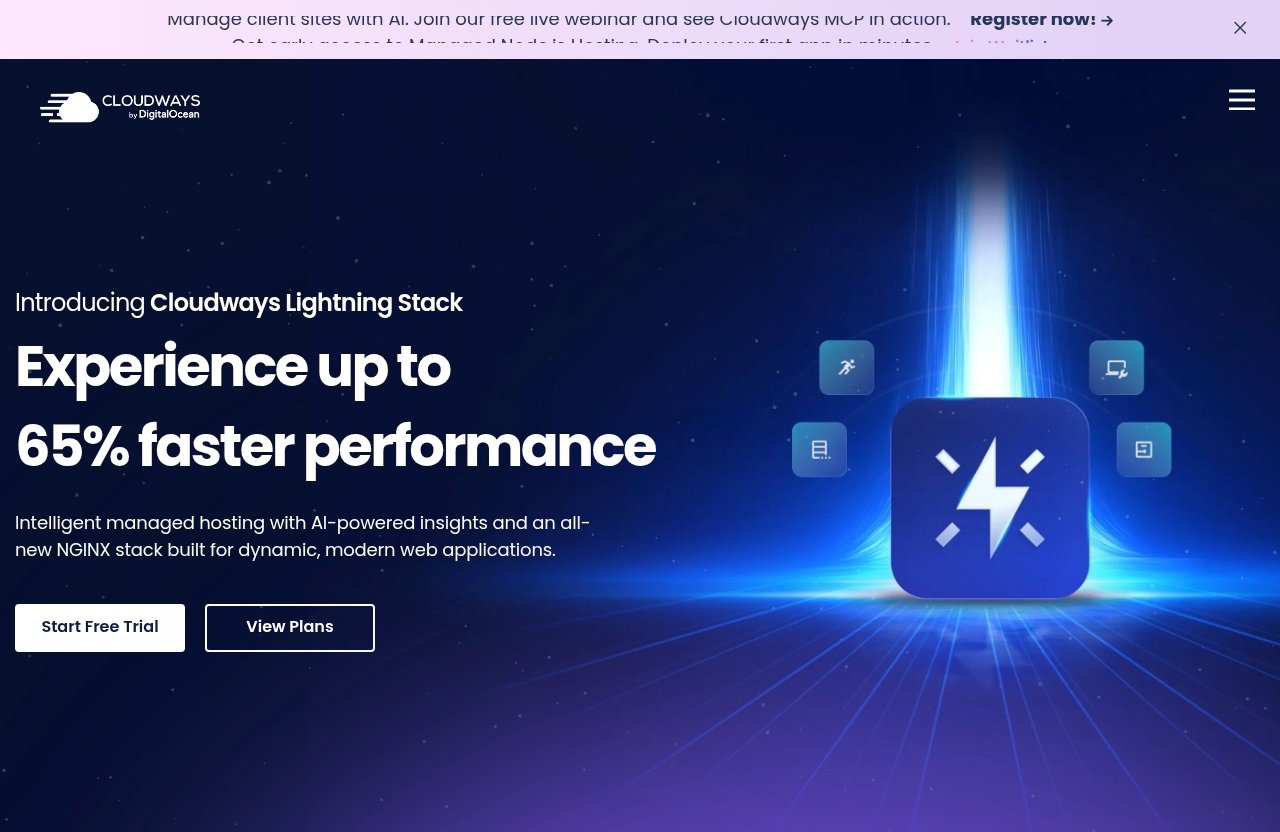
Go to the Cloudways login page
To start your cloudways login, open your browser and go to:
https://platform.cloudways.com/login
Make sure the address starts with https:// and uses the official Cloudways platform domain. This helps you avoid unofficial pages or confusing search results.
If you are already on the Cloudways homepage, look for a sign-in or login option that takes you to the platform login page. For the fastest route, use the direct login URL above.
Choose a login method
On the Cloudways login page, choose the sign-in method that matches how you created your account. The visible options include DigitalOcean, LinkedIn, GitHub, Google, or email/password.
For beginners, the easiest rule is this: use the same method you used when you first registered. If you signed up with Google, use Google again. If you created a password directly with Cloudways, use your email and password.
Using the wrong method is a common reason for cloudways login confusion. For example, if you signed up with Google but try to use email/password, you may not get the result you expect.
Enter credentials and complete sign-in
If you choose email and password, enter the email address connected to your Cloudways account and then your password. Check for spelling mistakes, extra spaces, or using an old email address.
If your Cloudways sign in is successful, you should land inside the Cloudways dashboard. From there, you can begin reviewing applications, servers, account areas, and support options.
If your cloudways login is not working, do not keep trying random passwords. Use the appropriate recovery option on the login page if available, or check whether you originally signed up using a social login provider.
What to do if you use social login
If you use DigitalOcean, Google, GitHub, or LinkedIn to sign in, Cloudways will depend on that provider to verify your identity. Make sure you are logged into the correct provider account in your browser.
For example, if you have multiple Google accounts, your browser may choose the wrong one automatically. In that case, sign out of the wrong Google account or use a private browser window, then try the cloudways login process again.
The same idea applies to GitHub, LinkedIn, or DigitalOcean. Use the provider account that is actually linked to your Cloudways account.
Troubleshooting Cloudways Login Problems
Wrong password or email
If you see a login error, start with the basics. Confirm that you are using the right email address and that there are no typos in your password.
Many Cloudways login not working issues come from using a personal email instead of a work email, or vice versa. If you manage hosting for a business or client, check which email was used to create the account.
Also remember that your Cloudways account login credentials may not be the same as your WordPress admin credentials, domain registrar login, or webmail password.
Browser cache and session issues
Sometimes the browser causes sign-in problems. If cloudways login keeps looping, freezing, or showing an unexpected account, try these simple fixes:
- Refresh the page
- Open the login page in a private or incognito window
- Clear your browser cache for the Cloudways site
- Try a different browser
- Log out of other Google, GitHub, LinkedIn, or DigitalOcean sessions
This is especially helpful if you manage several accounts or use social login. A browser may remember a previous session and send you to the wrong account.
Provider login issues with DigitalOcean, Google, GitHub, or LinkedIn
If you use a provider-based Cloudways sign in option, the problem may be with the provider session rather than Cloudways itself. For example, you might be logged into the wrong Google account or using a GitHub profile that is not connected to your Cloudways account.
Before assuming cloudways login is broken, verify the provider account. Sign into the provider separately, confirm it is the right profile, then return to the Cloudways login page.
If your company uses shared devices or multiple team members access the same browser, this step is important. A saved provider session can easily point you to the wrong account.
When to contact support
Contact Cloudways support if you have confirmed the login URL, tried the correct email or provider, and still cannot access your account. Cloudways lists 24×7 expert support as one of its verified features, so support is the right path when basic troubleshooting does not solve the issue.
Before reaching out, prepare useful details:
- The email address you believe is linked to the account
- The login method you are trying to use
- Whether you used email/password, Google, GitHub, LinkedIn, or DigitalOcean
- Any error message you see
- Whether the issue happens in multiple browsers
Also be clear about whether you are trying to access the Cloudways dashboard, webmail, or a website admin area. This helps avoid confusion between Cloudways app login and Cloudways email login.
Official website · Latest pricing & offers
Cloudways Dashboard Tour for New Users
Main navigation areas
After a successful cloudways login, you will arrive inside the Cloudways dashboard. The exact layout may change over time, so always verify details inside your own account, but new users should generally look for areas related to applications, servers, account settings, team access, and support.
Cloudways is a managed cloud hosting platform. Its homepage lists products such as Cloudways Flexible, Cloudways Autonomous, Client Billing & Reporting, and Cloudways AI Copilot. Inside your account, the options you see may depend on your product, setup, permissions, and current Cloudways interface.
Do not worry if the dashboard feels unfamiliar at first. Start by identifying where your applications and servers are located, because those are usually the most important areas for hosting management.
Finding applications and servers
Applications are where your websites or apps are managed. Cloudways supports WordPress, Laravel, Magento, WooCommerce, and PHP, so your dashboard may include projects based on those technologies.
Servers are the cloud hosting environments that power those applications. Cloudways works with verified cloud providers including DigitalOcean, Vultr, Linode, AWS, and GCE.
For a beginner, the key distinction is simple:
| Area | What It Usually Represents |
|---|---|
| Applications | Your website or app project |
| Servers | The cloud environment where the app runs |
| Account/support areas | Billing, help, settings, or team-related options |
Your first Cloudways dashboard tour should focus on finding the app you want to manage and understanding which server it belongs to.
Viewing team, account, and support options
Once your cloudways login is complete, look for account-related and support-related areas. These are useful if you need to manage your profile, check account details, invite or coordinate with team members, or request help.
Cloudways lists 24×7 expert support as a verified feature. If you are unsure about a setting, support can be useful, especially when you are dealing with migration, SSL, performance, or security questions.
Avoid changing settings you do not understand. Managed cloud hosting gives you more control than basic shared hosting, but that also means it is smart to move carefully.
Where to start after login
After Cloudways first login, start with orientation rather than configuration. Find your application, find the related server, then review any obvious status or setup information available in your account.
If you signed up to build a WordPress site, locate the WordPress application first. If you are working on WooCommerce, Magento, Laravel, or PHP, look for the corresponding application or project.
The goal of the first session is not to master every feature. It is to understand where things are and what your next step should be.
First Things to Check After You Log In
Confirm your plan and environment
After cloudways login, confirm that you are in the correct account and environment. If you work with clients or multiple businesses, this matters because you do not want to edit the wrong application or server.
Check your account information and verify any product or plan details inside your own Cloudways account. The interface and available options can depend on what you selected during signup and what Cloudways currently offers.
Do not rely on memory when reviewing billing or plan details. Always confirm the current information inside the official dashboard.
Locate your application(s)
Next, find your application or website. This is where you will likely spend much of your time after signing in.
Cloudways supports WordPress, Laravel, Magento, WooCommerce, and PHP projects. If you are using Cloudways for WordPress or WooCommerce, identify the correct application before making any changes.
If you cannot find the expected application after cloudways login, check whether you are in the right account. This is another common issue when users have multiple email addresses or social login options.
Review performance and security tools
Cloudways lists performance and security as verified platform features. After you find your application and server, review the tools and settings available in your own dashboard.
Cloudways also lists free SSL as a verified feature. If you are launching a public website, SSL is one of the first items to review because it affects secure browsing.
Be careful not to assume every dashboard option works the same for every product or application type. Verify the settings in your own account before making changes.
Set up next steps for launch or migration
If you are moving an existing website, Cloudways lists free migration as a verified feature. Review the migration options available in your account or ask support for the correct process.
If you are launching something new, your next steps may include setting up the application, reviewing server details, checking SSL, and preparing your site for visitors.
A useful Cloudways first login checklist looks like this:
- Confirm you are in the correct account
- Locate your application
- Identify the related server
- Review security and SSL options
- Check performance-related areas
- Confirm whether you need migration help
- Contact support if you are unsure
This keeps your first session focused and reduces the chance of changing the wrong setting.
Cloudways Pricing, Plans, and What New Users Should Know
Official pricing page context
Cloudways pricing can vary by product, provider, and current offer, so you should verify current pricing on the official Cloudways pricing page or inside your account. This guide does not create pricing tables because the provided official pricing-page content is not usable for detailed plan costs.
Before starting or completing cloudways login, it is reasonable to review pricing if you are still deciding whether to use the platform. If you already have an account, check your dashboard for the most current account-specific information.
Which pricing details are verified
The only verified pricing detail available from the official content provided is for Advanced Support. Cloudways shows Advanced Support with a current price of $100/mo and a new discounted price of $25/mo flat.
No other plan prices are included here because they are not verified in the provided official content. That is intentional: hosting pricing can change, and guessing would not be helpful.
Cloudways also lists verified features such as performance, security, 24×7 expert support, free migration, and free SSL.
Why pricing should be checked before login
If you are a new user, check pricing before creating an account so you understand what product fits your needs. If you already have an account, check pricing and billing details after cloudways login from the official account area.
Cloudways lists several product areas on its homepage, including Cloudways Flexible, Cloudways Autonomous, Client Billing & Reporting, and Cloudways AI Copilot. The right option may depend on whether you are hosting a single site, managing client work, or running a more complex project.
Do not make billing decisions based only on old articles, screenshots, or third-party summaries. Use official Cloudways pages and your own account for current details.
Best Uses for Cloudways After Login
WordPress sites
Cloudways is commonly used as a managed cloud hosting platform for WordPress. After cloudways login, WordPress users should locate their application, review the related server, and check important setup areas such as SSL, security, performance, and migration options.
For beginners, this can be easier than trying to manage cloud infrastructure directly. You still get access to cloud hosting through providers such as DigitalOcean, Vultr, Linode, AWS, and GCE, but Cloudways provides a managed platform around that environment.
Bloggers, publishers, and small businesses can use Cloudways to manage WordPress sites without starting from a completely manual server setup.
Agencies and client work
Agencies often need to manage multiple websites, clients, launches, and support requests. After cloudways login, the dashboard can become the central place to find applications, servers, account areas, and support options.
Cloudways also lists Client Billing & Reporting as one of its homepage products. Based on the official description, it is designed to automate recurring billing, payments, and invoices.
If you work with clients, be careful with permissions and account access. Verify team and account options inside your dashboard rather than assuming every user has the same level of access.
Developers and ecommerce
Developers may use Cloudways for Laravel, PHP, WordPress, Magento, or WooCommerce projects. After signing in, the main task is to identify the correct application and understand the server environment behind it.
Ecommerce users, especially WooCommerce and Magento site owners, should pay close attention to performance, security, SSL, and support. Cloudways lists these as verified platform strengths, but you should still verify the specific tools and settings available inside your own account.
For SMBs, developers, ecommerce teams, bloggers, and publishers, the value of cloudways login is practical: it gives you one place to begin managing hosted applications and cloud infrastructure from the Cloudways platform.
If you want to explore Cloudways for managed cloud hosting for WordPress, WooCommerce, Laravel, Magento, or PHP, you can visit Cloudways through this official affiliate link. Check the current product and pricing details directly on Cloudways before making a purchase.
Official website · Latest pricing & offers
FAQ
Is Cloudways a Pakistani company?
The provided official Cloudways sources for this guide do not confirm whether Cloudways is a Pakistani company. To verify company origin, ownership, or office details, check Cloudways’ official About, Contact, or legal pages.
How much does Cloudways cost?
Cloudways pricing should be checked on the official pricing page or inside your account because costs can vary by product and current offer. The only verified pricing fact provided here is that Advanced Support is shown with a current price of $100/mo and a new discounted price of $25/mo flat.
What are Cloudways used for?
Cloudways is used for managed cloud hosting and for launching or managing websites and applications. It supports WordPress, Laravel, Magento, WooCommerce, and PHP, with cloud providers including DigitalOcean, Vultr, Linode, AWS, and GCE.
What are the cons of Cloudways?
Some beginners may find managed cloud hosting more complex than basic shared hosting. It may also cost more than entry-level shared hosting, depending on your setup, so it is smart to read a balanced review and verify current pricing before buying.
Related Reading
- Cloudways Complaints in 2026
- Cloudways for Developers: 2026 Guide
- Cloudways for Agencies: A Practical 2026 Guide to Managed Cloud Hosting for Client Work
